How to Make YouTube Thumbnails in Canva That Get Clicks
Learn how to make YouTube thumbnails in Canva that get clicks: the right size, 3-word text, contrast, faces, fonts and 12 design tips for beginners.
Your thumbnail is the first thing viewers see, often before they even read your title. A great thumbnail can double the number of people who click your video. A weak one means even a brilliant video goes unwatched.
The good news: you don't need Photoshop or design training. Canva's free plan has everything you need to make professional thumbnails in minutes.
Why thumbnails matter so much
YouTube measures click-through rate (CTR): the percentage of people who click after seeing your thumbnail. When more people click, and then keep watching, YouTube shows your video to more people. Your thumbnail and title work together as your video's advertisement.
The right YouTube thumbnail size
- Dimensions: 1280 × 720 pixels
- Aspect ratio: 16:9
- Format: JPG or PNG
- File size: check YouTube's current limit (historically 2 MB)
In Canva, search "YouTube Thumbnail" when creating a design and the correct size is set automatically.
Step-by-step: make a thumbnail in Canva
- Open Canva and choose the YouTube Thumbnail design type.
- Pick a template close to your style, or start blank once you're confident.
- Add your main image: a face, an object or a screenshot that represents the video.
- Remove the background of your subject (Canva's Background Remover, or a free tool like Remove.bg) so it pops.
- Add 1–4 words of bold text that adds to the title rather than repeating it.
- Add contrast: a bright background, an outline or a shadow behind the subject.
- Preview small: zoom out until the thumbnail is the size of a phone screen preview.
- Download as PNG or JPG and upload it in YouTube Studio.
12 thumbnail tips that increase clicks
1. One clear idea
The best thumbnails communicate one idea in under a second. If you need to explain it, it's too complicated.
2. Three words or fewer
Text should be short enough to read at a glance on a phone. Many top thumbnails use no text at all.
3. Don't repeat the title
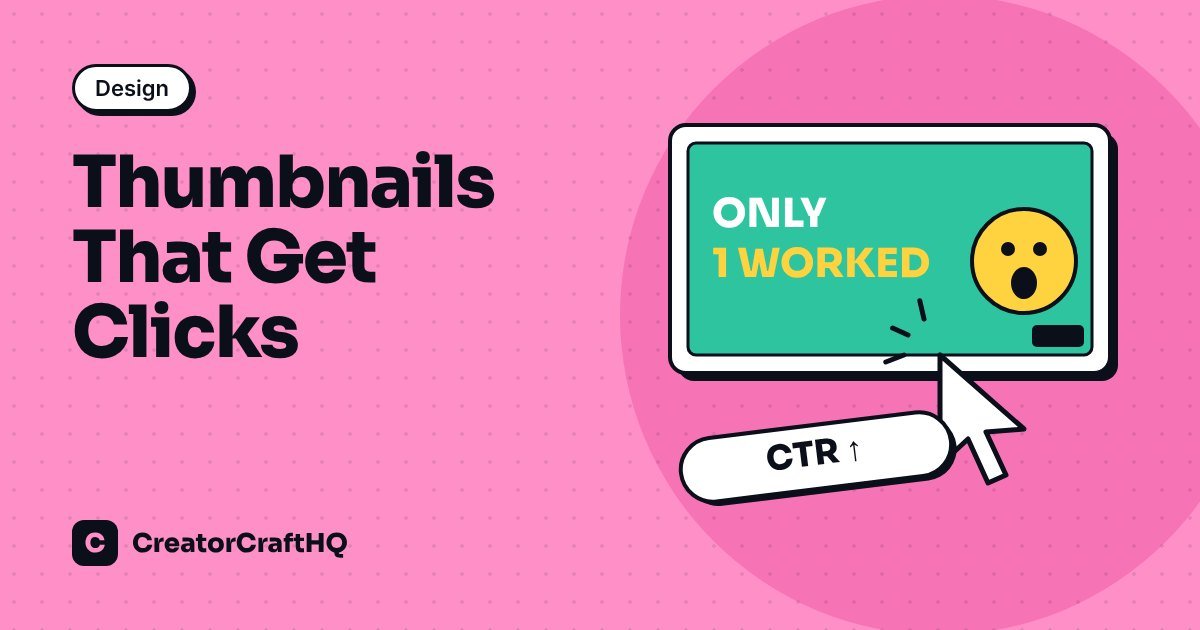
Use the thumbnail and title as a team. If the title is "I Tested 5 Free AI Video Editors", the thumbnail text could be "Only 1 Worked".
4. Show emotion
Human faces with clear expressions (surprise, excitement, curiosity) attract attention. If you run a faceless channel, use a strong object, a before/after or a dramatic result instead. See our faceless YouTube guide.
5. Use high contrast
Bright subjects on darker backgrounds (or the reverse) stand out in a busy feed. Yellow, white, green and red text with a dark outline are popular for a reason.
6. Make the subject big
Fill at least a third of the thumbnail with your main subject. Small details disappear on mobile.
7. Choose bold, simple fonts
Thick sans-serif fonts are easiest to read. Avoid thin, script or decorative fonts. Stick to one or two fonts across your channel.
8. Keep the bottom-right corner clear
YouTube places the video length over the bottom-right corner, so don't put important text there.
9. Create a consistent style
Use similar colours, fonts and layouts across videos. Over time, viewers will recognise your videos in their feed instantly. Save your design as a template in Canva.
10. Show the result, not the process
People click for outcomes. Show the finished design, the earnings screenshot (only if real), the transformed room or the final product.
11. Use arrows and circles sparingly
A single arrow or circle can guide the eye. Too many make a thumbnail look cluttered and spammy.
12. Test and improve
YouTube Studio lets you compare thumbnails on some channels using its built-in test feature. Otherwise, swap the thumbnail on an underperforming video and compare CTR over the next week.
Thumbnail checklist before you upload
- ✓ Readable at phone size
- ✓ One main subject, large and clear
- ✓ 0–4 words of text
- ✓ Strong contrast
- ✓ Nothing important in the bottom-right corner
- ✓ Matches what actually happens in the video
That last point matters. Misleading thumbnails might win a click, but viewers leave quickly, which hurts your video's performance.
Using Canva's AI features for thumbnails
Canva includes AI tools that can speed up thumbnail design, such as generating images from text, expanding backgrounds and removing objects. Some advanced features may require a paid plan. Use AI to create backgrounds or props, but keep your main subject clear and relevant.
Canva free vs Canva Pro for thumbnails
You can make excellent thumbnails on the free plan. Canva Pro adds conveniences like the one-click background remover (on many accounts), premium elements, brand kits and Magic Resize. Many creators upgrade once they're publishing regularly. If you're just starting, use the free plan and a free background remover.
Want more free tools to pair with Canva? See our list of the best free AI tools for content creators.
FAQ
What is the best size for a YouTube thumbnail?
1280 × 720 pixels with a 16:9 aspect ratio. Canva's YouTube Thumbnail template uses this size automatically.
Can I make YouTube thumbnails in Canva for free?
Yes. Canva's free plan includes thumbnail templates, fonts, elements and photos. Some premium elements and tools require Canva Pro.
How much text should a thumbnail have?
Usually three words or fewer. The text should add curiosity or context that the title doesn't already provide.
How do I check if my thumbnail is working?
Check the impressions click-through rate in YouTube Studio analytics. Compare it with your other videos rather than an industry average.
Disclosure: this article may contain affiliate links. We only recommend tools we would use ourselves. Read our affiliate disclosure.